Showing posts with label digital cameras. Show all posts

Monday, November 24, 2008

General advice for purchasing a new digital camera*

I have been receiving e-mails here at Tech–for Everyone that have been regarding my recent article about the fella who went traveling, and for the first time left his 35mm gear at home. (He only carried a digital camera.)

These e-mails have been asking me which digital camera it was. The reason they wrote is, they want to buy the same one. I had very carefully avoided naming a specific make or model of digital camera, as (believe it or not) I am not in the business of promoting sales.

But I understand perfectly why people want some advice when it comes to buying a digital camera. There is a whole gaggle of them to choose from– an overwhelming variety.. and when you start shopping, it’s easy to become confused by the jargon.
A “mega” pixel is better than an ordinary, everyday “pixel”.. right? (You bet it is. It contains more vitamins and minerals.)

A long, long, time ago I wrote a three-part advice series on buying a new computer, and today I am going to reiterate a bit of advice from there– when buying a digital camera, you have to hold it in your hands. The “right” camera for you will just, well, “feel right”. If you keep accidentally pushing a button, or put your thumb right on the viewer screen.. that’s not good.

Tip of the day: General advice for purchasing a new digital camera.

* Optical zoom is better than digital zoom. Make sure that the “zoom” feature of your camera is handled by a moving lens. Digital zooming is okay in very small amounts, but the way it works will cause funny-looking “pixilation” when really put to work.
* You want image stabilization. Image stabilization is in my opinion simply a “must have”; fortunately, almost every manufacturer provides it. I won’t spend time, here, describing the different types. If you’re curious, click the link.
* The Megapixel. Folks, there is a lot of confusion regarding the camera jargon word “megapixel”. A higher megapixel number does not necessarily equate with “sharper image” or “clearer picture“.. in fact, they usually have nothing to do with each other.
Megapixels refers to the image (data) size and determines how big an enlargement you can make before you start to experience distortions (think of it as being a bit like film sizes). If the largest prints you ever make are 5 x 7, a three-to-four Megapixel camera is all you need. A 10 Megapixel camera is overkill for the vast majority of uses, and it will simply fill your memory card faster, with fewer shots. (But, you can make poster-size prints.)
* LCD “viewfinder”. I think it is important to have a manual viewfinder, as well as the LCD screen.. but that is personal opinion. In terms of LCD, the two factors to consider are placement and size. It should be big enough that you can see what it is showing when you hold the camera away from your body, and, it should be positioned on the camera in such a way as to not cause you to hold your hand in a funny/odd way so that you can see it.
Important: The LCD screen not only needs to be large enough to see, but it needs to be bright enough that you can see the preview when you're outdoors in sunshine. If the image looks kind of dim in the store...
* And I’d like to repeat, your camera should just feel right in your hand.
* Don’t buy features you won’t use. If you are not a photography buff, and don’t want to memorize a 200-page owners manual, then you don’t want to buy a D-SLR; you want a “point-and-shoot”, (You won’t impress anybody with it anyway) and you don’t need 24 “settings” if you’re only going to use one. Right? Right.

Today’s free link: If you are like the fella I mentioned in the original articles, and like to read reviews and technical specs, or if you just want more information about digital photography (maybe it’s your hobby), check out http://www.pcphotomag.com/.

Copyright 2007-8 © Tech Paul. All rights reserved.jaanix post to jaanix

Share this post :

Friday, September 19, 2008

Free Long-distance*

Phew, what a morning! I have been troubleshooting practically since I got out of my nice, warm bed. But, I don't mind: it's what I do for a living.

This morning, as I was thinking about what to write today (and helping people with their technical troubles), it occurred to me what a tremendous boon two particular technologies are -- namely, Remote Assistance, and VoIP/teleconferencing. I simply could not run my business (shameless plug: my online repair shop, Aplus Computer Aid) without them.

Remote Assistance allows me to view my client's computer screen (and if they permit it, issue mouse and keyboard commands) just as if I were sitting in front of it... basically "transporting" me, across any number of miles, to their computer via the magic of the Internet. This is truly amazing stuff, if you think on it some and.. it saves me quite a bit on gas.

Instead of saying into the telephone, "Okay, what do you see now?" and then trying to decipher the client's response.. I see on my screen exactly what they see. This saves so much time (and, my client's money) and miscommunication that a repair that might take an hour can be accomplished in fifteen minutes. Yes, amazing stuff.

But to get to the title of today's article and the other "distance-eliminating" technology, let's switch gears to IP telephony (aka "VoIP"). Regular readers of this series know that I am out here on the Lefty Coast, and that I have a young niece and nephew on the other coast -- roughly 3,000 miles away.
Loyal Friends and True also know that I do not like to fly.

In the golden olden days, this East Coast/Lefty Coast situation would lead to  large long-distance phone bills and occasional cross-country drives. But thanks to VoIP, and webcams, I can not only talk with (and see) my niece and nephew, but I can do so for free.
Yes, amazing stuff.

What makes this so neat/cool/awesome is (in my mind, anyway) the "webcam". These cameras (that often look like a plastic tennis ball) can be had for as little as $15 retail, and they make all the difference. Most new notebook computers come with cameras built-in.

These little video devices do a good job at letting you see and be seen, and even the cheap ones have pretty good resolution. No.. you cannot get a hug over a webcam, but you can see a smile.

So if you have a computer, and you have the Internet (how else would you be reading this article?), and you have loved ones who live farther away than next door.. and you don't have VoIP and a webcam.. what are you waiting for? Get on the bus!
Buy a webcam, insert (and run) the Install CD, and then plug the camera into a USB port. It is basically that simple. Buy one for your loved one's house -- if they don't already have one -- too.

Then, you'll need some way to contact them ("call" them) and start your Internet visit. If you are already using an Instant Messenger (IM) to "chat" with them, then you already have the method. Most, if not all IMs have video capability as well as "phone" (or "voice"). [Click View >Options if you have difficulty finding these features.] Typically, you have to pay a fee ("subscribe") to use the phone/voice.

Today's free link(s): To avoid those fees, both you and your loved ones can download a VoIP client -- such as Skype or SightSpeed. You will then set up an account, in very much a similar manner as you do opening a free email account (Hotmail, GMail, Yahoo Mail, etc.).. you set up a User Name/password. Then you add Contacts, or "Search For" contacts, again in a manner very similar to email.
Once configured -- and it really isn't hard -- a visit with a distant friend is only a click away. Thanks for listening, and have a great weekend.

[update: a reader wanted to know how the make the video window larger in Skype; right-click on the video image and from the choice select either "Windowed Mode" (my reco) or "Full screen".]

*Original posting 12/27/07

Copyright 2007-8 © Tech Paul. All rights reserved.jaanix post to jaanix

Thursday, September 11, 2008

Speed Up Your Camera -- Kill the Logo

Digital cameras truly are a modern marvel. They're quick, highly portable, easy to use, and produce instant results. You can use one pretty much any time, anywhere.

And with digital images, you don't have to hide away in a dark closet and handle noxious chemicals to crop and edit your prints. Now, we eliminate red-eye, and fix contrast, etc., with the click of the mouse.camera

As I wrote in Digital Cameras and You, the convenience and quality of digital cameras has all but done away with 35mm film.

Tip of the day: Speed up your digital camera's boot time by disabling the splashscreen.

Almost every digital camera displays some kind of company logo when you turn it on. This is wasted time and energy that does nothing but slow you down.. and might even make you miss your shot. If your make/model allows it, (and most do) turn this "feature" off.

The exact method will vary from camera to camera, but typically the option your looking for is in the General Settings area of the main menu.
The phrasing may be "show" or "enable", and you want to un-select this. And, it may be labeled "welcome screen" or "splashscreen", or even, "startup screen".
(If you just cannot locate the menu option, consult the manufacturer's Website.)

This quick settings change, will give you a faster power-up, and allow you to be more responsive in your picture taking.

For those of you shopping for a new digital camera, you might want to read my article, Digital cameras– which one’s for you?

Today's free download: (repeat) One of the best free programs for working with your digital images-- resizing, cropping, eliminating red-eye, color-adjusting, etc.-- is Paint.NET.
You can also find helpful tutorials here.

Copyright 2007-8 ©: Tech Paul. All rights reserved.jaanix post to jaanix

Wednesday, September 3, 2008

Add Firewire 800 To Your PC-- Fast Video Transfer

Adding new capability to your PC is called "upgrading", and today I am going to tell you how easy it is to upgrade your machine to include Firewire capability.

Firewire "transfer technology" is faster than USB and can be a real benefit to those of you who own digital camcorders, or are thinking of transferring your VHS video tapes onto DVDs, or are otherwise working with digital video.

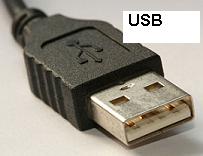
First of all, what is Firewire (aka 1394)? Firewire is, in essence, a wire (cable, actually). It looks and feels and acts very much like your quite familiar USB cabling-- it is so similar looking that they changed the shape of the plug so you can tell them apart. The USB is rectangular, and the Firewire has an angular extension on one end.

The main difference between the two data transfer technologies is speed: the original USB speed is 12 Mbps and the original Firewire is 400 Mbps, the newer "2.0" standards (which you really should have by now) is 480 and 800 million bits per second, respectively. So, if you have large data blocks to transfer -- such as video -- from one device to another, Firewire 800 is the way to go.

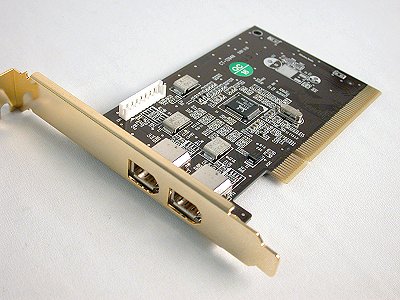
Tip of the day:If your machine did not come with a Firewire port, or if it did but it is the older Firewire 400 type, upgrade your system by adding a PCI expansion card to your PC. The photo above shows a two-port Firewire PCI card. These expansion cards come in a variety of flavors; some offer more ports, or "combo" ports like 2 USB + 2 Firewire. They are very affordable: the simple 2 port shown above can be found for $18.

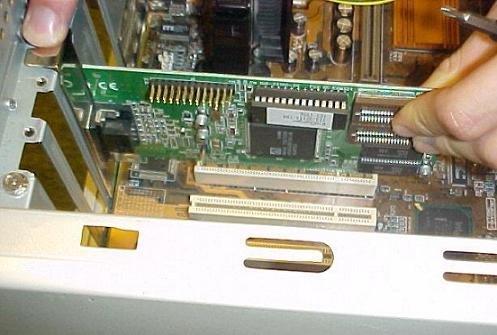
Installing an expansion card is not difficult but if you're not inclined to try it yourself, a Tech Support and/or Repair person (like myself) will not charge you much to put it in for you. It is a simple matter of inserting it into a white slot on the motherboard.
1) Load the device drivers: It may seem counter-intuitive to run the Install CD before the device is actually in the PC, but this is the usual method. Insert the CD that came with your card and follow the wizard. This will install the Plug-and-Play device drivers for your new device.
2) Prepare your PC: The next step is to completely power-down, and unplug your computer from the wall outlet. Now open your computer's case; typically there's two small screws holding your side panel in place. Lay your PC on its side so that the motherboard is down at the bottom, and you can see all the slots and components.
[Attention: Do not reach inside the case unless you are wearing an antistatic wristband, or until you have touched a bare metal section of the case's frame. A very, very small dose of static electricity can ruin electrical components inside a computer.]

Find an open (white) PCI slot, and remove the corresponding metal tab from the back of the case. This will open up an outlet for the faceplate of the expansion card.
3) Install the card: Gently, but firmly, insert the card into the open slot. You want to use enough force to fully "seat" the card into the slot. 4) Validate your install: Plug your PC back into the electrical outlet and power up your machine. Windows will launch, and it will detect your new hardware. A small dialogue window will open down by your clock that tells you that Windows is installing your New Hardware. Unless there is some glitch, you are done. You can start using your new device.
* If Windows does NOT detect the new card, insert the Install CD and go through the wizard again. If this still fails to install your new card, it is likely that the card itself is not fully inserted into the slot -- power-down and really push it in this time. Repeat step 4.
If this fails (and this is unlikely), read my troubleshooting article here.

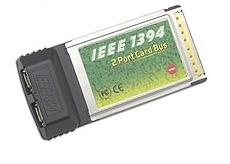
Laptop owners: For those of you who want to add this capability to your notebook PCs, the steps are very similar -- except you won't be using a PCI expansion card. You will want to purchase a Firewire PCMCIA card, such as the one shown here.

Today's free link: Teen Chat Decoder. From site: "This free Teen Chat Acronym Decoder lets you 'Crack The Secret Code' your teen uses online, in Chat Rooms, online chats, Instant Messages, & Text Messages. This is an awesome software for parents because it gives you an inside look into your teenagers online life."

Copyright 2007-8 © Tech Paul. All rights reserved.jaanix post to jaanix

Monday, May 12, 2008

Digital cameras-- which one's for you?

I have been receiving e-mails here at Tech--for Everyone that have been regarding my recent article about the fella who went traveling, and for the first time left his 35mm gear at home. (He only carried a digital camera.)

These e-mails have been asking me which digital camera it was. The reason they wrote is, they want to buy the same one. I had very carefully avoided naming a specific make or model of digital camera, as (believe it or not) I am not in the business of promoting sales.

But I understand perfectly why people want some advice when it comes to buying a digital camera. There is a whole gaggle of them to choose from-- an overwhelming variety.. and when you start shopping, it's easy to become confused by the jargon.
A "mega" pixel is better than an ordinary, everyday "pixel".. right? (You bet it is. It contains more vitamins and minerals.)

A long, long, time ago I wrote a three-part advice series on buying a new computer, and today I am going to reiterate a bit of advice from there-- when buying a digital camera, you have to hold it in your hands. The "right" camera for you will just, well, "feel right". If you keep accidentally pushing a button, or put your thumb right on the viewer screen.. that's not good.

Tip of the day: General advice for purchasing a new digital camera.

* Optical zoom is better than digital zoom. Make sure that the "zoom" feature of your camera is handled by a moving lens. Digital zooming is okay in very small amounts, but the way it works will cause funny-looking "pixilation" when really put to work.
* You want image stabilization. Image stabilization is in my opinion simply a "must have"; fortunately, almost every manufacturer provides it. I won't spend time, here, describing the different types. If you're curious, click the link.
* The Megapixel. Folks, there is a lot of confusion regarding the camera jargon word "megapixel". A higher megapixel number does not necessarily equate with "sharper image" or "clearer picture".. in fact, they usually have nothing to do with each other.
Megapixels refers to the image (data) size and determines how big an enlargement you can make before you start to experience distortions (think of it as being a bit like film sizes). If the largest prints you ever make are 5 x 7, a three-to-four Megapixel camera is all you need. A 10 Megapixel camera is overkill for the vast majority of uses, and it will simply fill your memory card faster, with fewer shots. (But, you can make poster-size prints.)
* LCD "viewfinder". I think it is important to have a manual viewfinder, as well as the LCD screen.. but that is personal opinion. In terms of LCD, the two factors to consider are placement and size. It should be big enough that you can see what it is showing when you hold the camera away from your body, and, it should be positioned on the camera in such a way as to not cause you to hold your hand in a funny/odd way so that you can see it.
* And I'd like to repeat, your camera should just feel right in your hand.
* Don't buy features you won't use. If you are not a photography buff, and don't want to memorize a 200-page owners manual, then you don't want to buy a D-SLR; you want a "point-and-shoot", (You won't impress anybody with it anyway) and you don't need 24 "settings" if you're only going to use one. Right? Right.

Today's free link: If you are like the fella I mentioned in the original articles, and like to read reviews and technical specs, or if you just want more information about digital photography (maybe it's your hobby), check out http://www.pcphotomag.com/.

Copyright 2007-8 © Tech Paul. All rights reserved.jaanix post to jaanix

Share this post :

Tuesday, April 29, 2008

Climb aboard the VoIP bandwagon*

Phew, what a morning! I have been troubleshooting practically since I got out of my nice, warm bed. But, I don't mind: it's what I do for a living.

This morning, as I was thinking about what to write today (and helping people with their technical troubles), it occurred to me what a tremendous boon two particular technologies are -- namely, Remote Assistance, and VoIP/teleconferencing. I simply could not run my business (shameless plug: my online repair shop, Aplus Computer Aid) without them.

Remote Assistance allows me to view my client's computer screen (and if they permit it, issue mouse and keyboard commands) just as if I were sitting in front of it... basically "transporting" me, across any number of miles, to their computer via the magic of the Internet. This is truly amazing stuff, if you think on it some and.. it saves me quite a bit on gas.
Instead of saying into the telephone, "Okay, what do you see now?" and then trying to decipher the client's response.. I see on my screen exactly what they see. This saves so much time (and, my client's money) and miscommunication that a repair that might take an hour can be accomplished in fifteen minutes. Yes, amazing stuff.

But to get to the title of today's article and the other "distance-eliminating" technology, let's switch gears to IP telephony (aka "VoIP"). Regular readers of this series know that I am out here on the Lefty Coast, and that I have a young niece and nephew on the other coast -- roughly 3,000 miles away.
Loyal Friends and True also know that I do not like to fly. I openly admit that you would have to pay me several tens of thousands of dollars to board an airplane again. (Please do not send me comments on flying. It's my phobia, and I am quite comfortable with it and I intend to keep it around.. it goes well with my decor.)

In the golden olden days, this East Coast/Lefty Coast situation would lead to large long-distance phone bills and occasional cross-country drives. But thanks to VoIP, and webcams, I can not only talk with (and see) my niece and nephew, but I can do so for free.
Yes, amazing stuff.

What makes this so neat/cool/awesome is (in my mind, anyway) the "webcam". These cameras (that often look like a plastic tennis ball) can be had for as little as $15 retail, and they make all the difference. These little video devices do a good job at letting you see and be seen, and even the cheap ones have pretty good resolution. No.. you cannot get a hug over a webcam, but you can see a smile.

So if you have a computer, and you have the Internet (how else would you be reading this article?), and you have loved ones who live farther away than next door.. and you don't have VoIP and a webcam.. what are you waiting for? Get on the bus!
Buy a webcam, insert (and run) the Install CD, and then plug the camera into a USB port. It is basically that simple. Buy one for your loved one's house -- if they don't already have one -- too.

Then, you'll need some way to contact them ("call" them) and start your Internet visit. If you are already using an Instant Messenger (IM) to "chat" with them, then you already have the method. Most, if not all IMs have video capability as well as "phone" (or "voice"). [Click View >Options if you have difficulty finding these features.] Typically, you have to pay a fee ("subscribe") to use the phone/voice.

Today's free link(s): To avoid those fees, both you and your loved ones can download a VoIP client -- such as Skype or SightSpeed. You will then set up an account, in very much a similar manner as you do opening a free email account (Hotmail, GMail, Yahoo Mail, etc.).. you set up a User Name/password. Then you add Contacts, or "Search For" contacts, again in a manner very similar to email.
Once configured -- and it really isn't hard -- a visit with a distant friend is only a click away. Thanks for listening, and have a great weekend.

[update: a reader wanted to know how the make the video window larger in Skype; right-click on the video image and from the choice select either "Windowed Mode" (my reco) or "Full screen".]

*Original posting 12/27/07

Copyright 2007-8 © Tech Paul. All rights reserved.jaanix post to jaanix

Share this post :

Wednesday, April 23, 2008

Digital cameras and you

Not too long ago, I mentioned my friend who was preparing to travel; and told you that for the first time he was going to leave behind his 35mm (film) camera gear, and take only a digital camera (see Mondays: love 'em or leave 'em). For the first time, he was going to leave at home his lenses, flash unit, filters, different speed/type film rolls, etc., and carry a single unit.. with a couple of spare memory chips.

I also mentioned that he is the type of fella who does extensive research before making a purchase, like a camera, and I can tell you he bought a pretty fancy digital camera for his trip.. and we're not talking about a "pocket camera". But, we're not talking about an SLR (single-lens reflex) and a whole bunch of accessories, either. I won't name a specific camera here, but I will say that his choice had 12x zoom, electronic image stabilization, and a nice, large, LCD viewer. When I held it in my hand, I was pleasantly surprised by its comfort and light weight.

No sooner had my friend returned from his travels abroad, then he was at my door with his memory chips containing his pictures, in hand. He knows about my previous life as a professional retouch artist, and he wanted my help with culling, cropping, and color-balancing (etc.), and burning the 'good ones' to a slide show on a CD.

And so I got a very good look at his "product", and vicariously traveled abroad with him as he narrated the history of each and every shot.. much like a new father describes the wondrous attributes of his first-born. There were several things that impressed us:

I, being an old hand at professional photography, was impressed by the image quality this digital camera produced. No. The pictures weren't Hasseleblad-quality, but the resolution, color depth and saturation, and depth of field were all remarkably good.. even when enlarged to fill my 20" monitor. All of my color "balancing" tweaks were quite optional, and I only did two at that.

He, being new to digital imaging, was blown away by how easily and quickly he could edit the shots, put them into the order he wanted, and create a portable slide show he could carry on a thumb drive (I haven't yet told him about online "albums".. he was too busy trying to absorb the wonders of Photoshop) or CD. SlideProjector
He had a finished, quality slide show to present to his friends and family in a matter of a few hours -- he was used to it taking weeks to assemble, and for him to have to carry around a projector and carousel trays.

Yes.. technology is changing everything. I can no longer be a film-camera snob, and badmouth digital cameras as being inherently inferior. My friend did not break the bank buying his camera, and his choice was roughly in the low end of the middle-grade of digital cameras, if you include SLR's, and on the higher end of the scale if you limit your choices to point-and-shoot's. (He spent under $500, including several extra high-capacity Flash Memory chips.)

And, as this tale illustrates, there's no comparison in the speed and convenience of digital imaging.

Copyright 2007-8 © Tech Paul. All rights reserved.jaanix post to jaanix

Share this post :