Showing posts with label shred. Show all posts

Friday, September 26, 2008

Fraud Prevention Tips

Follow these tips to help protect yourself from fraud.

  • Carry only necessary information with you. Leave your social security card and unused credits cards at home in a safe and secure location.
  • Make photocopies of vital information you carry regularly and store them in a secure place, such as a safety deposit box.
  • Do not provide your Social Security number unless absolutely necessary.
  • Replace paper invoices, statements and checks with electronic versions, if offered by your employer, bank, utility provider or merchant.
  • Shred documents containing personal or financial information before discarding. Most fraud and identity theft incidents happen as a result of mail and garbage theft.
  • Review your credit report at least once a year, looking for suspicious or unknown transactions. You can get a free credit report once a year from each of the three major credit bureaus at www.annualcreditreport.com. For a small fee you can obtain a copy at any time directly from:
  • Place outgoing mail in a U.S. Postal Service mailbox to reduce the chance of mail theft.
  • Promptly retrieve incoming mail to limit the opportunity for theft.
  • Know your billing and statement cycles. Contact the company’s customer service department if you stop receiving your regular bill or statement.

Today's free download: I found this list on the . This site is a valuable public service that contains much useful advice, such as "How Fraudsters Operate", "How To Protect Yourself", and "Online, Mobile, Computer and Email Security Tips". It is a free education, so check it out.

Copyright © 2007-8 Tech Paul. All rights reserved.jaanix post to jaanix

Monday, June 23, 2008

How to recover your lost files

You have deleted some old files and now you need them back.
Or, you disconnected your thumb drive by pulling it out of the machine without bothering with that "Safely Remove" thingy, and now your machine cannot "see" the thumb drive at all-- it's dead.

Your files are gone and you need them back.. what a nightmare! How do you get them back?

I cannot count the number of times I have advised my readers to make regular backup copies of their files (in fact, Automate your backup and get some peace of mind was one of the very first articles I wrote). Having copies of your files on some place other than your hard drive (such as a CD/DVD) is the surest way to make sure that some unfortunate mouse click, mechanical failure, or glitch doesn't permanently rob you of important documents, irreplaceable photographs, or costly music downloads. (There. I've nagged you again. Now, will you please run a Backup program and burn some discs?)

But you don't have backup copies of these files... you didn't think you'd ever need them.. but now you do. OK.
As I mentioned in Delete does not erase your data--preventing recovery, if the reason you no longer have access to the file you want is because you emptied your Recycle Bin (Trash) or right-clicked+delete, you may recover your file with an undelete tool.. just so long as too much time has not elapsed.
* It is a very good idea to install an undelete tool on your computer before you need it. If you haven't done so and you don't already have an undelete tool installed, use an online scanner/recovery tool such as Softperfect File Recovery to try to effect your recovery.

Other reasons for missing ("inaccessible") files are varied and numerous.. and I could fill a book book with detailed steps for each variant. (If you've had to reformat your hard drive, for example {try an "unformat" tool}. Data recovery is a large-- and costly --business.) Fortunately, I don't have too write it, it's already been written.

Tip of the day+Today's free link: Visit and bookmark the following Webpage.
PC World Magazine and MSN Tech have teamed up to bring us Kirk Steers' How To Recover Almost Anything, a three page primer on data recovery steps, and advice for which tools to use.
This information is first place to look when you run into a file recovery situation.. having it bookmarked ahead of time is a good idea, because timeliness is a factor in your success or failure.

*** Disclaimer: you may have noticed that I used the words "may" and "can try"; this is because recovering damaged/corrupted, deleted, or "lost" files is as much luck as it is science. Certain things improve your chances of success.. but the only sure method is making copies of your stuff, and keeping them somewhere else.. like in a safe-deposit box.

Copyright 2007-8 © Tech Paul. All rights reserved.jaanix post to jaanix

Tuesday, June 10, 2008

Precautions for your Internet privacy*

I have posted several advice articles on your computing safety, and that of your child's, in the past. It is my personal passion to thwart digital Evil Doers. I cannot emphasize enough that there are steps you can -- and should -- take to reduce your risks of Identity Theft and spyware infections. I have posted these steps for you to take advantage of (free), and I will continue to do so. I encourage you to use the Search box in the upper right to find and read past Tech--for Everyone security articles.

Tip of the day: Increase your security and privacy by removing your browsing tracks. All browsers record histories, store copies of the webpages you've visited, and to be helpful, store your log on User Names and Passwords, and the answers to forms you've filled out. Your machine is programmed to be as fast, efficient, and helpful as it can, and it takes steps you may not be aware of to do this.

For instance, your browser will store a "temp" copy of this Webpage in one of many "temporary" folders, and make a note of the time. This is done so that should you return to this page, your machine can load it from local memory; which is much faster than downloading HTML instructions, text, and graphics and building the page. It uses the timestamps to determine if there's been changes to the "source" page, and if there has been, it will download the newer page. This helps to give you the illusion of a "fast Internet".
Other automatic conveniences that record your personal information are Autocomplete, Autofill, and AutoLogon. This is usually accomplished through the use of cookies. (In spite of what you may have heard, all "cookies" are not "bad".) Hackers know where to look for all this stored information, and they know how to exploit it. Today I am going to show you how to counteract, and change some of this automatic behavior and help you keep your privacy, well, private.

Start by opening IE and clicking on the down-arrow to the right of the Tools menu and selecting Internet Options. (Loyal readers of this blog will already be familiar with this window.)
iops.jpg

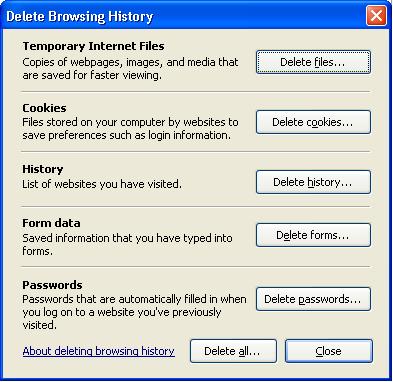
In the "Browsing History" area, click on the "Delete" button. Now a menu window will open...deletehist.jpg
Here you are presented with your choices of what to erase (or to "delete all") and what not. I recommend getting into the habit of regularly clicking on the first, third, and fourth delete buttons -- Temp files, History, and Form data. [Form data is particularly important to erase if you have made an online payment, and/or entered your credit card number. Even if you did so on a Secured site.] Sadly, there is no method to set IE to do this automatically for you (you would need a 3rd party utility for that...see today's free link) and you must remember to this manually.

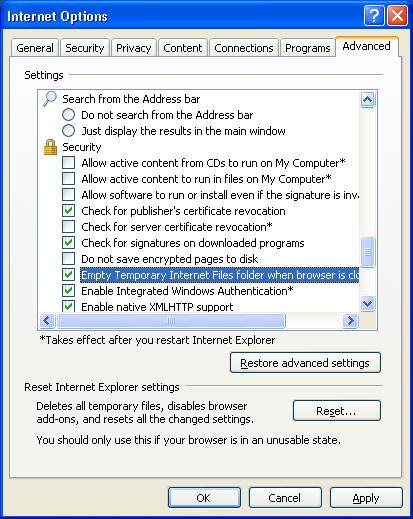
You can, however, set IE to erase the "temp" files automatically. Click on the Advanced tab of Internet Options, and scroll down to the Security list of settings. Place a check (select) in the checkbox next to "Empty Temporary Internet files when browser is closed", as shown below. Then click "Apply", and "OK".

advnced.jpg

Today's free link: the tool I use to erase the digital breadcrumbs on my machines is Absolute Shield Internet Eraser. From site: "AbsoluteShield Internet Eraser protects your privacy by cleaning up all the tracks of your Internet and computer activities. The tool is integrated with IE and it can erase the browser cache, history, cookies, typed URLs, autocomplete list and so on in one click. You can also set the tool to automatically erase those tracks when you quit IE or quit Windows."

* Original posting: IE 7 and your privacy, 7/8/07.

Copyright 2007-8 © Tech Paul. All rights reserved.

jaanix post to jaanix

Tuesday, May 6, 2008

Delete does NOT erase your data*-- preventing recovery

I don't know how long it was that I worked and played on computers before I truly understood that when I erased a Word document from my My Documents folder it was not gone forever. It was only natural to think it was "deleted". It was gone, as far as I could tell. It didn't show up no matter how I searched for it nor how desperately I needed it back. And believe me, there was many a time that I wished I could get a deleted letter or homework assignment back. (I am, in particular, thinking back to my Windows 95 days, and my hard drive was 4.3 Gigabytes. I was a fanatic about "disk doubling" and emptying my Recycle Bin!) If I cannot see it...and my machine cannot see it...and my machine says that the space it took up is now 'free'...it is gone, right? I certainly thought so.

I think it's rather important that you understand, if you don't already, that when you right-click+delete, or drag something into the Recycle Bin, it isn't really erased. Instead, the name/path entry in the file allocation table (the directory used to locate and 'find' files) is altered in a way that tells Windows to no longer display the file and that this (physical) area is now available for future storage. The same thing happens when you take the drastic step of formatting your hard drive -- it isn't "wiped" like taking an eraser to a chalkboard: the Master Boot Table and the file directory are similarly altered, and once that occurs the machine can neither find your files nor your operating system -- the rest of the 1's and 0's are left in place.

It is because of this fact -- that files aren't erased, but their directories and names are altered -- that undelete and unformat utilities can perform their miracles. Instead of ignoring or treating these altered entries as writeable space, they (attempt to) deliberately seek them out and rename them back to a recognizable formula, which restores Windows' ability to 'see', find, and display them. So, why couldn't my undelete restore my file? The most likely reason is: because Windows sees the deleted file as usable space, it has written something new in that location -- and now that new 1's and 0's are there, your file really and truly is gone. (The more time that elapses since you deleted the file, the more likely it is that it has been written over.)

[A quick aside: I look at a lot of systems' hard drives, and I've found that today people tend to be the opposite of me and my space-paranoia, born out of small HD's. It strikes me that they don't "recycle" anything. ]

Tip of the day: Never assume that your data has been erased. In fact, I suggest thinking in an opposite manner: assume that no matter what proactive measures you've taken, your data is on that hard drive. Tell yourself that a knowledgeable person with the right tools, if they get their hands on your hard drive, can read it. (There are some people in this industry who insist that your files aren't really gone until your hard drive has been melted in a blast furnace!) Particularly keep this in mind when the time comes to donate (or otherwise get rid of) your old computer.

If you are security-conscious, and you want to ensure that when you erase something it's really and truly erased (or you are about to donate your old PC) I recommend that, if you don't already have one, you download a free file shredder utility (I will put one as today's free link) and to choose one that offers multiple methods of shredding. What a "shredder" does is it writes new data, and it does it in multiple passes. Typically writing all 1's on one pass, all zeros on the next pass, and then a completely random pattern of 1's and 0's, and so on. It is generally recognized that your shredder should make 6-12 passes.
* If you do this, you can donate your old PC comfortable in the knowledge that only a several thousand-dollar restoration, performed in a sterile lab, might render your personal information readable again. (If you are a corporation, and it's time to throw out your old hard drives, and there's highly sensitive data on those drives...melt them.)

Today's free link: Zilla Data Nuker 2 (Please note: this program is an exception to my rule of always having run and tested the links I suggest. I have not ever needed to download a file shredder as I've always had one bundled into the Utility Suites I have on my machines. However, this application is 5-star rated by Cnet, and I was unable to locate it on any "blacklists". It is the one I would try first.) From Cnet, "This powerful program helps you shred important files & folders so that they cannot be restored & prevent attempts to recover sensitive deleted files from your hard drive by data recovery or forensic software. Shredder allows you to purge, wipe & erase data with methods that far exceed US Department of Defense standards for file deletion (DOD 5220.22). Easily automate the cleaning process with batch files, shortcuts and scheduler. Supports complete folder deletions including subfolders."

*Original post: 6/22/07

Copyright 2007-8 © Tech Paul. All rights reserved.jaanix post to jaanix