Showing posts with label repair your Internet connection. Show all posts

Tuesday, February 24, 2009

Lost the Setup CD? How To Connect a Router*

Reader asks how to connect to the Internet without the original CD

Q: "How can I connect to the Internet with my laptop via D-link router from desktop? We have no CD ROM for d link."

A: You do not need the setup CD to make a router work (frankly, the following is my preferred method, as the CD’s usually install unnecessary “bonus features”.) Here is how you establish Internet connections (aka "configure a") on a router.

1) Assign your PC an IP address in the same range as the router’s default address– for most routers, assign the IP 192.168.1.2, but since this is a D-Link router, use 192.168.0.2.
(Look to “Assign Address” here for Illustrated instructions.)

2) Connect the PC directly to the router with an Ethernet cable.

3) open a web browser (IE, Firefox, Safari) and enter the IP address number of the router into the address bar. (If you don’t know this, look to the router manufacturer’s Website for “default settings”). Typically, this is 192.168.1.1, or 192.168.0.254 -- but D-Link uses 192.168.0.1.

4) Enter the default Name and Password (again, look to to the website’s support page/FAQ’s if you don’t know these). But typically these are “admin”+”admin”, or “admin”+”password”.
D-Link’s default is admin/admin.

Your are now in your router’s “web interface” Control Panel, and you can enter the PPPoE setting provided by your ISP. Typically all you need is an identifier.. which is an e-mail address + password.
If you can’t find or remember these, contact your ISP’s support. D-Link’s Wizard will help.
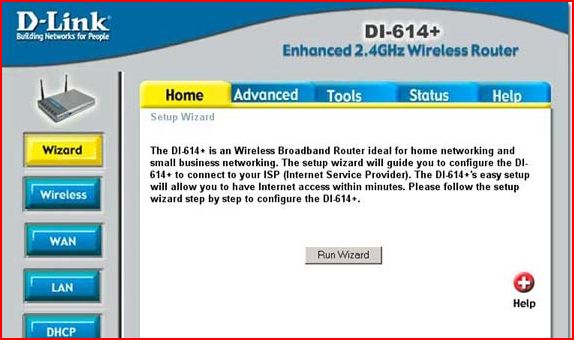
[note: Once your ISP has connected, and while you're in the Control Panel, set your router's security configuration, and set a new password (and write them down). Illustrated instructions can be found here, http://techpaul.wordpress.com/2008/01/01/how-to-secure-your-wireless-network/]

5) Return to Network Connections (from Step 1) and reset your PC to “Get address automatically–DHCP”. Reboot your PC if necessary.

Today’s free link: Return to Castle Wolfenstein: Enemy Territory. (Full Install.) Wolfenstein Enemy Territory is a stand-alone multiplayer game in which players wage war as Axis or Allies in team-based combat. In Wolfenstein Enemy Territory Axis and Allied teams do battle in traditional single scenarios, or wage war through a series of linked scenarios in a totally new campaign mode. During combat players gain experience and skill, and through battlefield promotions are awarded additional abilities that remain persistent across an entire campaign.

* Orig post: 10/13/2008. For some reason, this has been getting a lot of 'hits' this week...

Copyright 2007-9 © Tech Paul. All rights reserved.jaanix post to jaanix
Share this post :

Monday, October 13, 2008

No CD For Router Setup

Q: How can I connect to the Internet with my laptop via D-link router from desktop? We have no CD ROM for d link.

A: You do not need the setup CD to make a router work (frankly, the following is my preferred method as the CD's usually install unnecessary "bonus features".) Here is how you establish Internet connections (configure a) on a router.

1) Assign your PC an IP address in the same range as the router's default address-- for most routers, assign the IP 192.168.1.2, but since this is a D-Link router, use 192.168.0.2.
(Look to "Assign Address" here for Illustrated instructions.)

2) Connect the PC directly to the router with an Ethernet cable.

3) open a web browser (IE, Firefox, Safari) and enter the IP number of the router in the address bar. (If you don’t know this, look to the router manufacturer’s Website for “default settings”). Typically, this is 192.168.1.1, but D-Link uses 192.168.0.1.

4) Enter the default Name and Password (again, look to to the website’s support page/FAQ’s if you don’t know these). But typically these are “admin”+”admin”, or “admin”+”password”.
D-Link's default is admin/admin.

Your are now in your router’s "web interface" Control Panel, and you can enter the PPPoE setting provided by your ISP. Typically all you need is an identifier.. which is an e-mail address+password.
If you can’t find or remember these, contact your ISP’s support.

[note: Once your ISP has connected, and while you're in the Control Panel, set your router's security configuration, and set a new password (and write them down). Illustrated instructions can be found here, http://techpaul.wordpress.com/2008/01/01/how-to-secure-your-wireless-network/]

5) Return to Network Connections (from Step 1) and reset your PC to "Get address automatically--DHCP".

Today's free link: Return to Castle Wolfenstein: Enemy Territory. (Full Install.) Wolfenstein Enemy Territory is a stand-alone multiplayer game in which players wage war as Axis or Allies in team-based combat. In Wolfenstein Enemy Territory Axis and Allied teams do battle in traditional single scenarios, or wage war through a series of linked scenarios in a totally new campaign mode. During combat players gain experience and skill, and through battlefield promotions are awarded additional abilities that remain persistent across an entire campaign.

Copyright 2007-8 © Tech Paul. All rights reserved.jaanix post to jaanix

Friday, October 3, 2008

How To Clear Your Cache

If you are having troubles logging in to a website -- such as your webmail account-- or pages are taking an extra-unusually long time to load, the first thing to try is to "refresh" (sometimes called "clear") your browser.

If you call Tech Support for help logging in, the first thing they''ll tell you is to "clear your cache". What they're refering to is deleting all your cookies, and here's how you do that.

1.  On your desktop, launch Internet Explorer. (If you use an alternative browser, the menu names may be a little different, but the steps follow the same principle.)
2.  On the "Tools" menu, click "Internet Options."
clip_image020

3.  Under Browsing history, click "Delete."
clip_image021

4.  In the Delete Browsing History window, click "Delete cookies." If you are prompted to confirm the deletion, click "Yes." It may take several minutes to delete these files if you have a lot of files, then click "Close."
clip_image022

For a more complete repair of Internet Explorer-- for more serious troubles-- read Tip#2 in this article.

Today's free download: Gnucash - Track bank accounts, stocks, income, and expenses in a checkbook-style interface. The GPL-licensed financial tool lets you mange cash, bank, stock, mutual funds, accounts receivable, and asset accounts quickly and easily.

Copyright 2007-8 © Tech Paul. All rights reserved.jaanix post to jaanix

Tuesday, April 8, 2008

How to repair a "lost" Internet connection

Accessing the Internet is has become one of the primary reasons we use our computers today, and losing our connections can be a frustrating disruption to our routine. If you rely on the Internet for conducting business, or "telecommuting" to work, a failed Internet connection can cost you money as well.
When your browser displays a "404 Error" (server not found), or a text balloon tells you that you have "Limited or no connectivity", you have what we Tech Support specialists call a "Internet problem", and it's time to do a little troubleshooting.

Troubleshooting your network can be a complex job and you might need the help of an experienced professional (shameless plug: such as myself, at Aplus Computer Aid), but before you give us a call, Windows has a built-in tool you should try. This tool only takes a few minutes and doesn't require any special training. It is the first thing you should try when disconnected.

Tip of the day: Repair your Internet Connection with the Network Connection Repair tool.
1) If your Network icon is visible in your Notification Area (down by the clock), right-click on it and select "Repair"


* If your Network icon is not displayed in the Notification Area, you need to access Network Connections in your Control Panel. In XP, click Start >Control Panel and under "Pick a category" select "Network and Internet Connections", then click "Network Connections".

Right-click on the connection you're trying to repair (either the "LAN", or the "Wireless network") and select "Repair".
The steps above are pretty much exactly the same in Vista, but with slightly different wording on the menus.


2) Windows will now automatically take several basic steps that will essentially 'flush' the current (not working) configuration, and start fresh.. requesting a new IP address from your modem. After a minute or so, you will see...


..and it's time to test your new connection by openning your browser and trying to surf the Web.

If for some unhappy reason this fails to re-connect you to the Internet, there is (probably) a problem with your network, or ISP, and the next step to take is to reboot your modem. The easy way to do this is to unplug its power, count to 10 slowly, and plug the power back in. You may have to repeat the Repair tool after the modem reboot.

These easy steps will reconnect you to the Internet the vast majority of the time (I would venture to say, 95%) and save you from having to call a Tech Support specialist (and your Geek Quotient has just gone up, too). However, it will not resolve every networking issue, and you may have to give your ISP a call for help. (They may have to reset something at their end, for example.) My experiences with ISP Tech Support have varied, and haven't always been enjoyable.. but you gotta do what you gotta do.
In today's world, Internet connectivity is a must.

Today's free link: If you really want to get into analyzing your Internet connection.. test it's speed, and maybe "tweak" your settings for maximum performance, the place to start is the Tools page at Broadband Reports (a mirror of DSL Reports). You will find the well-known tweak tool, DrTCP, here, as well as many other tools for finding out if your ISP is really delivering what it promised (and if not, you can find other ISP's in your area and see how they're performing).

Copyright 2007-8 © Tech Paul. All rights reserved.
jaanix post to jaanix
Share this post :