Showing posts with label device drivers. Show all posts

Saturday, October 18, 2008

Plug-and-Play Doesn't Work, Pt 1*

Windows 95 introduced a method for automatically detecting and installing (configuring) newly attached devices, which was called "Plug and Play" (PnP). The idea was that you could insert a relatively new super-enhancer, like a graphics card, or sound card, (there was a big deal called "multimedia" happening then, if you recall-- "The new Pentium II, with MMX!") into a slot inside your machine and Windows would automatically make it work.

This worked so well that folks quickly re-dubbed it "Plug and Pray".
(For the sake of fairness, and for those of you with a historical sense, it is my belief that the responsibility for the bad name PnP acquired lies at the feet of the card makers, particularly Creative Labs Sound Blaster cards, as much as it did Microsoft.)

Before Plug and Play came along, adding a new device to your PC was a huge ordeal. There were tiny switches (called "dips") and little wire bridges ("jumpers") and IRQs, and such, that had to be fiddled with in an agonizing series of trial-and-error attempts that would try the patience of the most stalwart soul.

Fortunately for all of us, Windows and device manufacturers have been (for the most part) working hard to make the concept behind PnP a reality. Each successive iteration of Windows has become better and better at easy, automatic, device installation. By the time of Windows XP, it was a rare occasion when Plug and Play required additional efforts on our part before our new scanner/webcam/printer/graphics card/etc. would function as it should.

With Vista we have a whole new set of issues. PnP works almost exactly as it should, effortlessly. As long as we're adding a brand-new, Vista compatible device, all you have to do is plug it in and power it on. The problem we have in Vista is with our old devices -- devices manufactured before Vista was a gleam in Microsoft's eye -- like that old, reliable Deskjet 970Cse.

Tip of the day: Get those recalcitrant devices working, Pt.1.
The first step in installing a new device is to follow the instructions that come with it, and (usually) inserting the Installation CD, and letting Plug and Play 'do its thing'.
Frequently this is all you need to do (although you may be asked to reboot).

The first troubleshooting step, should this fail, or should Vista reject the device, is to go online and visit the device manufacturer's website. There you should look in their "Support" section for "Drivers" and/or "download drivers". Find the most recent release for your version of Windows (Vista users may have to do a Web Search) and take careful note of whether it is the 32-bit, or 64-bit version. Almost all of you out there want the 32-bit version. [If you are unsure whether you have 32 or 64-bit Windows: right-click My Computer and select Properties. The info titled "System" will tell you your version.]

Now click on the download link, and when asked if you want to "run" or "save" this program, click on "Save". You will be (or at least, should be) asked where you want to save the program to, and since it will most likely have a bizarre and forgettable name, save it to your desktop.

Once the download is completed and saved, close your web browser and any other programs you have running -- it shouldn't be necessary to shut down your protection, like antivirus, but be prepared to hit "allow", quickly.
Now double-click the download. Usually, a wizard will open, asking you to hit "Next", "I agree", "Next"...just follow along.

When it's done, odds are good your device will now work as it should, but whether it does or not, the next step is to restart your machine ("reboot"). This process will resolve the majority of, but not all, device related issues. Vista users may run into a situation where the device in question is no longer "supported" by the manufacturer, or simply hasn't gotten around to writing Vista drivers yet. A Search for "Vista drivers for make+model" will likely turn up a solution.

There are further troubleshooting steps you can take if this does not resolve your issue (see links below. Also, there are websites that specialize in nothing but device drivers, and these are often an excellent place to start looking for hard-to-find drivers. I am including one such site below.

http://techpaul.wordpress.com/2007/07/12/adding-hardware-when-pnp-doesnt-work-part-2/

http://techpaul.wordpress.com/2007/07/13/concluding-add-new-hardware-when-pnp-doesnt-work/

Today's free link: DriversPlanet From site: "DriversPlanet.com is the Web's trusted resource for technology enthusiasts, IT consultants and IT professionals searching for any device driver. DriversPlanet.com provides an easy way of finding drivers in one spot enabling you not to get lost in worldwide chaos of drivers."

Copyright 2007-8 © Tech Paul. All rights reserved.jaanix post to jaanix

Friday, October 17, 2008

If It Ain't Broke, Don't Fix It*

There is something wonderful in this simple philosophy. It certainly is an aggravation saver, and I believe it is a good, honest, tip for a happier life. It is applicable in all aspects of our daily lives -- including our tech gadgets.

Some people (me), though, have some malformed gene, or mis-wired section in their brain which renders them constitutionally incapable of keeping their mischievous little fingers off of a perfectly functioning device. These people have a strange compulsion to try to "make it better". They just have to open it up and look at what's inside...
A highly Scientific Study (that I just made up) has proven that a full 9-out-of-10 of these personality-types not only fail to "improve" the device, they fail to get all the piecesTim the Toolman back inside, much less back in their proper places.

The modern name for these people is "tweaker". The most 'famous' tweaker was probably Tim ["the tool man"] Taylor, a character made famous by Tim Allen on Home Improvement. (I loved it when he "improved" the kitchen garbage disposal by powering it with a chainsaw engine.) His motto: More power!

Yes, "if it ain't broke, don't fix it" is a very good Rule. For that 90% of tweakers who only succeed in disassembling the object of their interest, it ought to be a Law. However (you, Dear Reader, were expecting a "however", right?), tweaking can be a good thing. Tweaking sometimes leads to Invention. Successful and repeatable tweaks are called "optimizing". And who can argue against optimizing? Not me. A great deal of Tech--for Everyone is about optimizing your PC.. such as today's tip.

Tip of the day: Optimize your computer with the latest device drivers. Most of my readers should be aware of the existence of the small programs that allow the software on our machines (primarily the OS) to interact with the hardware, which are called "device drivers". If you've ever added a new device, you (typically) had to put in a CD and install the "driver" to get it operational. My readers probably also know that, like other programs, drivers get "updated", and improved, occasionally. Did you also know that by seeking out, and installing the latest drivers, you can have a faster machine? Or, that your device may suddenly have more "features" and capabilities? Today I'm going to show you a method to use that I consider the first step, and tomorrow I'll describe the more aggressive and effective approach, as well as how to "undo" a driver update if things should go wrong.

The first step is to create a System Restore point, to give yourself a fallback position. I reco doing this whenever you make significant changes to your machine. (To see my series on the System Restore tool, click here.)

Then you need to access your Device Manager tool. There are a couple of ways to do this, but I use Start >right-click My Computer >Properties >Hardware tab >Device Manager. Now you will see a list of the components on your machine, as shown in the example below.
devmgr.jpgSome, in fact most, of these items you do not need to worry about updating. The items that typically will give you the most improvement are: graphics, sound, printer, network (or modem) adapter, and (sometimes) monitor.

Begin by selecting the device you want to update the driver for -- I am going to use for demonstration the sound on a laptop computer -- and 'expand' the hardware list by clicking on the "+" sign next to the proper category, in my example that will be the "Sound, video, and game controllers" category.

Next, double-click on the device name to open its Properties dialogue window. In my case that's "ESS Maestro PCI Audio", and then click on the Drivers tab, which will now open a window that looks like this.
snddrvr.jpg
Now click on the Update driver button, which launches an automated process called the "Hardware Update Wizard". Accept the default radio button setting ("Automatically") and click "next".

Now Windows will go out and "search" for a "better" driver than the current version, and when it finds one, will help you install it via a couple of "Next" clicks. Do this for all the devices (device types) that I listed above.
Unfortunately, the  most common result of the search returns this window.
cannot.jpg
This is because Microsoft has built into the search parameters a complex formula of what constitutes "better". To them, better does not just mean "newer" (ie, a more recent version number), but whether or not the driver has been tested and approved in the Microsoft labs (for a fee), and whether or not the driver's author has shelled out the dough to buy a digital "certificate" (for another fee).
Since this is a simple driver, and not a new miracle accounting program, or other retail piece of code, most authors skip these expensive steps... and so the Update search will disregard these drivers as if they didn't exist. Tomorrows post will deal with this issue.

But doing this process can and does produce results, and it is the method I reco as the first step in a faster/better PC. New drivers are released all the time, so I do this every so often.

To read Part 2, click here.

Today's free link: I have reco'd the popular Mozilla Firefox web browser here before, and I think it's only fair to tell you of another -- Avant uses the IE 7 rendering engine, but advertises itself as the "fastest browser on earth". I like it for its built-in security features, such as tracks erasing, and its rss reader. Take a look at the Avant homepage, and then give it a try.

Copyright 2007-8 © Tech Paul. All rights reserved.jaanix post to jaanix

Tuesday, August 5, 2008

More security for Gmail

Your email account contains a lot of personal information, from private, personal letters to business documents. Email that you (probably) don't want other people to see.

If you are anything like me, you probably sign in to your Inboxes from multiple computers. I, for example, occasionally sign into my e-mail accounts from a friend's computer, or when traveling, a public computer. As a security paranoid kind of guy, I am sure to sign out before I leave... but every once in a while I wonder if I really did.

Thanks to a new feature in Gmail, I no longer have to wonder about that particular account; with this, I can now track my recent sessions and sign myself out remotely if I somehow forgot to do so.

At the bottom of your inbox page, you'll see information about the time of the last activity on your account and whether it's still open in another location.
Gmail_details

By glancing at this from time to time, I can see if something "doesn't jibe"; like, my account was accessed 15 minutes ago, and I haven't logged on yet today (that would be a pretty good indication that someone has gotten hold of my logon, and is reading my mail!).

To really see what's going on, I click on the "Details" link.
activ_rprt

And here I can see my activity history, the IP Addresses that accessed my account (a "*" indicates a match to my current IP), and what type of connection was made. This info can help determine if (and who) unauthorized access is occurring.

But what I like best is the "Sign out all other sessions" button. Clicking this will disconnect any other machines which are logged on by remote control... say, if I did walk away from a session without logging off.

This feature, and the "always use https" setting featured in yesterday's article, may make security-conscience Hotmail and Yahoo Mail users consider the switch to Gmail. (It has more storage, too.)

Today's free link: 5-Star rated DriverMax is a powerful free utility which helps you download, backup and restore the drivers installed on your Windows Vista or Windows XP computer and check if newer versions are available. This tool can save you a lot of time when reinstalling Windows, especially on older computers for which the original CDs containing the drivers have been lost. You no longer have to track down old driver installation CDs, or spend hours searching for drivers on the Internet. DriverMax is also able to display a detailed report about all drivers (versions, release dates) installed on your system. And will help identify unknown devices in your computer.

Copyright 2007-8 7copy Tech Paul. All rights reserved.jaanix post to jaanix
Saturday, May 3, 2008

Troubleshooting the Blue Screen Of Death

BSOD's, spontaneous reboots, freezing, and "incorrect password" lockouts. Bad computer. Bad.

bsod.jpg

Ah yes, the Blue Screen of Death. I sincerely hope you never see this rascal. The BSOD, or more properly, the Windows Stop Message, occurs when Windows detects a problem from which it cannot recover. The operating system halts and 'diagnostic information' is displayed on a blue screen as a series of hexadecimal numbers (there actually are a few humans capable of understanding, and using this information to effect repairs...but as far as I know, they all live in Seattle) which, frankly, will be of little use to the average user. Usually, a simple reboot resolves the issue. But sometimes it doesn't--you reboot, Windows loads, you get the Welcome screen, and bingo! BSOD. Wash/rinse/repeat. Aargh!!!

If this happens to you, the odds are pretty good that you have (quite recently) added a new device (or card) or memory module to your machine, or installed a program that your machine just doesn't like.
If it was a module, device, or card, try removing it and restoring your machine to the way it was before the install. If you run for a day or so with no BSOD's, then you can be fairly sure you've found the culprit. It may be that the device is defective. It may be that you didn't install it exactly correctly [maybe it didn't "seat" all the way into its slot?], or maybe your machine was being fussy the day you installed? Don't give up on your new card/device/module just yet. Go to the manufacturer's Website and download the latest device driver for your version of Windows, and "unzip" and install it (by double-clicking on the downloaded file). Then reinstall your card/device/module--taking extra care to fully seat it, and double check your wires and cables--and reboot. If it is a defective unit, it will not be long before our friend the BSOD revisits...return the unit to the seller (or manufacturer) for exchange or refund.

If you suspect a recently installed application (or...Microsoft Update) is the cause, then use the Add/Remove Programs tool to uninstall it. (XP+older: Start> Control Panel> Add/Remove Programs, Vista: Start> Control Panel> Uninstall a program.) [Note: in Vista, uninstalling Updates is done through Windows Update itself, not Add/Remove.]
If you are unable to get into Windows, reboot and start hitting the F8 key to get into Safe Mode. [For more info, click here] Again, run for a day or two, and if you do not experience any BSOD's, you've (most likely) found the perp. Again, you need not despair and abandon the program. It may have simply been an incomplete or corrupted install that was causing the stop errors. Try reinstalling it, but first make sure that there are no other applications running--turn off your AV, your IM, and close IE. You will soon know whether it is simply an incompatible or poorly written application.

I am going to stop here, but I want to acknowledge that this is far from a complete discussion on all the possible causes (nor cures) for BSOD's and the other woes mentioned at the top of this post. I will return to this topic again, and I invite your comments and critiques, and suggestions. I close by suggesting you also read my article on the Windows System Restore tool (click here) and reminding you that -- should all your efforts fail, my services are available at http://aplusca.com/

Today's free link: Sandra Lite from SiSoft. This is a benchmarking and system analysis tool that shows you a wealth of information about the workings of your computer, and detects areas that aren't working as well as they should.

Copyright 2007-8 © Tech Paul. All rights reserved.jaanix post to jaanix

Share this post :

Friday, April 18, 2008

Vista Plug and Play issues*

It has been a while since I've done a "reader questions answered" segment (and reminded you, Dear Reader that you can post questions to me), but I'm hoping that you'll remember the "Q's and their A's" format.

Q: Vista won't recognize my new device. What's wrong with my PnP?
A: Vista is actually quite good (in my opinion, the best yet) at automatically installing new devices with the use of PnP (Plug and Play). That said, a fair portion of the calls I receive at my online Tech Support business are troubleshooting PnP failures.
There are standard procedures for getting devices installed, when it doesn't happen automatically for one reason or another, which I have outlined here before. Review the How To's by clicking on this link: http://techpaul.wordpress.com/2007/07/11/adding-a-device-when-plug-and-play-doesnt-work-pt-1/. I advise reading all three parts, and the Comments as well (and read about USB Host controllers).
If you have tried these methods without success, there may be some "ClassID framework" missing which needs to get installed before Vista can 'see' your device, and you will need the help of Tech Support-- I would not be averse to getting it direct from Microsoft.

You can avoid some headaches by making sure the device you want to buy is "Vista Compatible". Vista is rather recalcitrant at accepting 3rd-party drivers that have not received Microsoft's stamp of approval (not undergone Microsoft laboratory testing). This is to ensure that the webcam (for example) you want is going to work, and not "mess up your machine". Visit the Vista Hardware Compatibility List, and sort by category to find approved (tested) makes and models, and purchase one from the list.

Q: I bought a gateway with Vista Home Premium, but need to convert back to XP Pro. I have a friend who is technically sound, but (they) said it would be hard to get all the drivers loaded to work right. Do you know where I can get all the drivers to make XP work on my Gateway that is less than a year old?
A: If you “must” convert back to XP Pro, you will indeed need to acquire some “for XP” drivers for some of your hardware/devices (XP will have some drivers already). Make a list of all your devices (Device Manager is a good place to start) and look on the Internet to make sure there's XP drivers available. Make a system state backup of your current configuration. Then Install XP.

Once XP is installed, use Device Manager to find which devices need drivers (look for yellow ?’s, and red Xs).
You will then go to the device manufacturer’s website and download the XP driver. (You should not use the “Update driver” feature, as XP drivers are ‘old’.) Again, I refer you to the article link above.
A tool like Sandra Lite can help determine the make/model of your devices if you’re unsure of the manufacturer (such as the motherboard chipset).
You will have to do this on a case-by-case basis (there is no driver ‘one-stop-shop’) for those devices not covered by the XP install itself…but that shouldn't be too, too many.

When you’re done, make a good backup... preferably with a "disk imaging" program.

Today's free link: I use Sandra Lite quite a bit when troubleshooting distant machines. The benchmarking tool gives a very complete system profile, including the make/model of installed devices. It is often the only way I can determine the motherboard chipset. A word of caution: do not elect to make the scan results public, or "share them for further analysis".

* Original post date: 02/14/08

Copyright 2007-8 © Tech Paul. All rights reserved.jaanix post to jaanix

Share this post :

Wednesday, April 2, 2008

Printer maintenance--how to avoid printer problems

Tip of the day: Just as any relationship needs a little attention and nourishment if it is to grow and prosper, and not slowly sink into stagnant routine, (such as flowers for no occasion, taking dance lessons, etc.) your printer will benefit from some occasional special attention too.

I don't know if it's the alignment of the stars, or what, but I've been hearing people talk bad about their printers quite a bit lately. Yes.. ink cartridges can be expensive, and they don't last as long as we'd like (how about.. forever?). Yes.. printers seem to have personalities, and they can get temperamental. And yes.. they're fickle and inconsistent-- one day you might get a white line running down a print (which magically goes away the next print.. or.. not) and then a month later, one line of text will streTCH, or.. they'll only "play nice" with a certain brand of photo paper. Yes.. I understand.

But let me make this point; printers are complex machines.. like your car is a complex machine. And complex machines require regular maintenance-- an occasional "Tune up", if you will. The following tips will keep your printer in tippy-top notch working order.

1: Clean house. Lint and dust, if allowed to accumulate inside the printer's body, can (and will, eventually) "gum up the works". There are several motors and gears and moving parts inside your printer, and a "head" that needs to smoothly move back and forth. Often there's a grease, or lubricant, on some of theses parts, and it will collect paper lint like there's no tomorrow-- this can sometimes lead to gears 'skipping', or 'jamming'.
You can avoid this by not letting too much dust and lint build up. Unplug your printer's power cord and open up your printer's access panels (and remove any trays). Then use the brush attachment on your vacuum to carefully and gently remove as much dust as you can. Use a can of compressed air to blow out the hard to reach corners.. or use an artist's brush (or baster's brush). Use your brush to knock any gunk balls off of gear sets.
You shouldn't ever add lubricants to your printer. If you think you have broken gear teeth, or your head simply will not slide, it's time for the repairman, parts replacements, or a new printer.

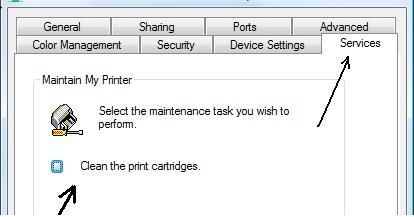
2: Get the most from your ink. Printers are designed to be used frequently, but in our homes we can go long periods between printing jobs-- this can lead to "clogged nozzles", or "dried out" cartridges. If it has been days or weeks since the last time you've printed, or your colors seem faded, you should run your printer's cleaning utility (sometimes called "maintenance"). Go to your Start button >Control Panel >Printers (in Vista, it's under "Hardware and Sound"). Then right-click on your printer's icon and select "Properties" from the context menu.
On the Printer Properties window, click on the "Services" tab.
opts1
Your actual options here may look slightly different (depending on your printer's make), but you are looking for the "clean cartridges" option.. in my case, it's the only choice. Select it, and click "OK".
Running this tool will clear up a surprising number of printer.. misprinting, and, perhaps counter-intuitively, get more mileage out of your ink cartridges.
[note: some printer manufacturers recommend running the cleaning tool if has been two days between print jobs. This sounds a little.. excessive to me; but, considering how small and delicate the nozzles can be... maybe they're onto something.]

*If you know your ink is on its last legs and its as good as gone, but you simply must get one last document printed, you can remove your ink cartridges and give them a good shake (and then replace them in the printer). This old trick may get your several more sheets before dead is truly dead.

3: give your printer the latest software. Your printer is a "device", and so to function smoothly with your PC, it needs software to communicate. This software is call "device drivers". Every so often, your printer's manufacturer will make improvements to this program and release it as an 'update'. This update may simply fix bugz not discovered in the original release, or make minor improvements, or it may add features to your printer's capabilities (or, all three). Installing the latest driver will keep your printer up to date and working its best with your operating system... keep in mind your operating system is changing (being updated) over time, and your device drivers need to keep up.
My two-part article on How To update your drivers is here, http://techpaul.wordpress.com/2007/08/22/if-it-aint-broke-dont-fix-it-part-1/, and as you can see from the title, I understand the idea that if it is working, why go get new software? Well, in computers, that idea doesn't exactly stand up.

Copyright 2007-8 © Tech Paul. All rights reserved.

Share this post :