Showing posts with label printers and all-in-ones. Show all posts

Thursday, May 21, 2009

Mac Printer Problem

The other day I received a phone call (at Aplus Computer Aid) from a man whose printer had suddenly stopped working. All the lights were on. The cable was plugged in. He hadn't moved the printer or computer, changed any settings, or installed/uninstalled any software.
So he was puzzled.

So I had him try the usual Printer Troubleshooting Steps
* Was the printer getting power (plugged in)? Yes.
* Turn the printer off, and then turn it again. Resolved? No.
* Is the USB cable plugged in securely? Yes.
* Delete old print jobs. Resolved? No.
* Is the printer showing in System Profiler? No.
* Restart the computer. Resolved? No.

Hmmm...
The fact that the printer wasn't showing up at all in the Profiler meant that it was almost certainly not a software (driver) issue.. And all the lights on meant it (probably) wasn't a power issue. So I kept coming back to the USB cable, and he kept telling me it was plugged in just fine, and that he hadn't touched it.
So I told him to "humor me" and plug it in to a different USB port.

This resolved his problem.
It turns out that had had made a change recently. He had replaced his keyboard with a new wireless mouse and keyboard set.
Keyboard? What's that got to do with a printer???Keyboard-USB

His printer's USB cable had been firmly and securely plugged in -- to the old keyboard. The one that he had unplugged to make room for the new wireless one. Apple likes to put convenient USB ports on their keyboards, and..
Normally, I run into this "it IS plugged in" with powerstrips. Is the powerstrip plugged in?

Today's free link: Apple's Support page for troubleshooting printer issues provides the step-by-step methods for resolving most printing errors. Those with driver issues (software) should look here.

Today's free download: In sticking with my Mac theme today.. http://www.opensourcemac.org/ is a website dedicated to listing the best in free (Open Source) programs for your Mac. All kinds of categories, so whether you're looking for an anonymizer or image editor, you'll find something here.

Copyright 2007-9 © Tech Paul. All rights reserved.jaanix post to jaanix
Share this post :

Friday, August 22, 2008

I want to party all the time...

There’s just something about Fridays that you gotta love.

We humans simply must have some light at the end of the tunnel, or we will flag, sag, and eventually quit trying. Friday (for most of us) is that light — the end of the work week is not only in sight, it’s mere hours away!
And Friday for a lot of us (me too… when I was younger) means that we will “go out”; we will “celebrate”; we will eat, drink, and (maybe) dance with friends, co-workers, and complete strangers. We will make merry. A joyous break in the routine.
clubbing

Friday means the weekend is here. Isn’t that a magical word? “Weekend”. (I smile just thinking it.)
Sure, the weekend isn’t all fun-and-games.. there’s lawns to mow, and cars to wash-and-vacuum, and a “Honey-Do list” a mile long, and grocery shopping.. there’s church, weddings to attend, children’s birthday parties, friends-who-need-help-moving-to-a-new-apartment and,.. have you cleaned out your gutters yet?
Weekends are never long enough.

Tip of the day: Weekends means tackling some household chores and so I am going to remind you that your computer needs an occasional cleaning too. (Nice transition, eh?)

1) Get rid of the dust and lint: Dust and lint can reduce your computer's performance, cooling efficiency, and even cause fatal short-circuits.
* For desktop PCs, unplug your clean computer's powercord from the wall and open your computer's case so you can see all the kewl circuitry inside. How, exactly your case opens will vary with make/model, but it is usually a side panel, and the side panel is held in place with two thumb-screws (the manufacturer's Website will have instructions, also).
Once the case is open, use the techniques I described in my recent printer maintenance article to remove the built-up dust bunnies. Pay special attention to air venting areas (and screens), such as by the power supply. (And, be careful and be gentle.)

* For notebooks, your cleaning is going to be a little different: you will want to get all the debris from out from under your keyboard keys, as I describe in this article. And you'll want to wipe down your screen with an anti-static cloth (which may may require the slightest [just a drop or two.. in one corner..] moistening with plain water.

2) Get rid of disk clutter: Empty the trash that accumulates on your hard drive for a leaner, meaner file system. Fortunately there's a one-button tool for that in Windows, http://techpaul.wordpress.com/2007/11/07/more-than-you-wanted-to-know-about-the-disk-cleanup-tool/

So let's not be "all party", let's also get busy and do some "Spring Cleaning" and give those machines the attention they deserve.

Today's free link: is a tool that creates a "sandbox", or virtual environment, in which you run other programs (namely, your web browser) and those programs and the data they access can't write to your hard-drive. This is an excellent way to prevent poisoned websites from downloading malware.

Copyright 2007-8 © Tech Paul. All rights reserved.jaanix post to jaanix

Wednesday, May 21, 2008

The print job won't stop printing

Sometimes we tell our machines to do something (let's, for the sake of example choose, oh, say, print a 10-page document) and then, being human and somewhat fickle, we change our minds.

Perhaps we notice that we selected the wrong document; or, we have a sudden "inspiration" and there's now a whole new thought we want to insert into it.. or we notice a major typo that we need to fix. Whatever it is, we want the printer to stop printing NOW.

Now what I am going to say next might comes as a surprise and a shock to some of you folks-- but, sometimes in life you just have to grab that band-aid by the corner and rip that sucker off.
Here's the thing, and I ain't gonna sugarcoat it-- computers are dumb machines. (Maybe, instead of "dumb", I should say "obedient"..)

Computers follow rigid logic to obey the "commands" you "input", and they really don't "multitask" very well. They 'think' and act sequentially.. and don't move on to the next input/command until they have completed the first one.
What this means is: they won't even see the command to stop printing the 10-page document until they have "processed" the Print command you gave earlier.
(The paper and ink that gets wasted this way is truly your fault, and not the computer's. You told it to Print, and it merely obeys!)

When you hit the power button on the printer (or yank the power cord out of the wall) you haven't really stopped the Print job. Oh, no. You have only interrupted it. When you turn it back on, or reconnect the USB cord-- your machine is going to everything in its power to complete its assigned task.. and it starts printing the 10-pager from right where it left off.

The correct way to stop the print job (you commanded) is to erase it from your PC's memory. Remember I told you computers were dumb? Well, they can be forgetful too.

1) Go to Printers in your Control Panel (In XP: Start> Settings> Printers and Faxes. In Vista: Start> Control Panel> Hardware and Sounds> Printers.)
2) Double-click on the printer that is still trying to print the 10-page document.

The window that opens will show all the print jobs scheduled to be sent to the printer for completion, and the 10-page document should appear here.

3) Click on "Printer" from the menu bar, and click "Cancel All Documents". (Answer "Yes" if you're asked, "are you sure?")
PrintQ

That's it. Your computer has now "forgotten" your command to print, and when you turn your printer on again, it will not start printing something you no longer want.

Copyright © 2007-8 Tech Paul. All rights reserved.jaanix post to jaanix

Wednesday, April 16, 2008

Mac myths

Some folks are Mac loyalists (I refer to them as "iPeople"). And some folks only use Windows. For a very long while, in the "early days" particularly, you pretty much had to choose sides -- you ran one OR the other. And once you chose, and bought your machine, (and learned how to use it) you stayed with it.. probably right up to today.

Up until fairly recently (Historically speaking), Apple went to some effort to remain apart (aloof?)-- they chose to use hardware standards, software formats, and such, so that you had to purchase "Mac" hardware, software, and peripherals, and floppies. You could not take your files from an Apple computer and work on them on a Windows computer.

All that has changed. (But the loyalties remain!) Macs no longer run unique CPU's (nor use SCSI), and the software is not written to exclude certain formats. A while back, they switched from "AppleTalk" to TCP/IP as their networking protocol. Yes, Apple is still "different" than Windows, but it far friendlier than it used to be.

It is partly because of these changes that quite a few people have (shudder) switched allegiances from Windows, and purchased a Mac. (If you are a Windows user, and are considering a Mac as your next computer, you may want to read this article of mine.)
Many people are taking advantage of either Parallels or Boot Camp and running both OSes on their Apple machines, essentially allowing them to enjoy the advantages of both camps.

Tip of the day: Forget those old ideas you may have had about Mac vs. PC's, as they're largely myths. Such as:

* Macs can't share files with Windows. Not true. As I mentioned (above), Macs (as of OS X 10.2) use TCP/IP for networking and support Windows' SMB. Adding a Mac to your Windows network (and visa versa) is basically as easy as plugging it in. You can exchange files over your network (in either direction) just as you do between your Windows machine.
And, you can access (use) networked printers, too-- whether they're attached to a Mac or a Windows machines.

Specially formatted floppies are gone too. Thumb drives, USB hard-drives, CD's and DVD's are the modern tools, and they are "universal"... you don't buy a "Mac thumb drive", you buy a thumb drive.

* You can't right-click on Macs. While it is true that Mac mouses have only one button (and you hold down the Ctrl key while clicking to open Context menus), you are not limited to using Mac hardware and/or peripherals any longer-- simply plug any USB mouse you prefer into your Mac machine.
As a "Windows guy", the biggest mental adjustment I have to make when sitting at a Mac is my compulsive need to right-click, and so I plug in a Kensington PocketMouse that I carry in my toolkit, and shazaam! I have the three-button capability I'm so used to.

Yes, it is true that some programs will only run on Windows, and some will only run on Macs. So far, the "workaround" for this is either virtualization (such as Parallels) or dual-booting. That is because Mac is founded on OpenBSD and Windows on MS-DOS. That said, "making the switch" from Windows to Mac has never been easier and, you don't have to completely switch loyalties-- you can run both; even on the same machine!

Today's free link: For those of you who like to download Flash games, or YouTube videos, Orbit (a download manager) will simplify your tasks. From site: "It is a free all-in-one downloader which can download streaming media, social music or video from anywhere include youtube, myspace, imeem, pandora, etc. It is famous for its super light, great speed and rapidshare supported." Today's link also includes reviews on C/Net.

Copyright 2007-8 © Tech Paul. All rights reserved.jaanix post to jaanix


Share this post :

Wednesday, April 2, 2008

Printer maintenance--how to avoid printer problems

Tip of the day: Just as any relationship needs a little attention and nourishment if it is to grow and prosper, and not slowly sink into stagnant routine, (such as flowers for no occasion, taking dance lessons, etc.) your printer will benefit from some occasional special attention too.

I don't know if it's the alignment of the stars, or what, but I've been hearing people talk bad about their printers quite a bit lately. Yes.. ink cartridges can be expensive, and they don't last as long as we'd like (how about.. forever?). Yes.. printers seem to have personalities, and they can get temperamental. And yes.. they're fickle and inconsistent-- one day you might get a white line running down a print (which magically goes away the next print.. or.. not) and then a month later, one line of text will streTCH, or.. they'll only "play nice" with a certain brand of photo paper. Yes.. I understand.

But let me make this point; printers are complex machines.. like your car is a complex machine. And complex machines require regular maintenance-- an occasional "Tune up", if you will. The following tips will keep your printer in tippy-top notch working order.

1: Clean house. Lint and dust, if allowed to accumulate inside the printer's body, can (and will, eventually) "gum up the works". There are several motors and gears and moving parts inside your printer, and a "head" that needs to smoothly move back and forth. Often there's a grease, or lubricant, on some of theses parts, and it will collect paper lint like there's no tomorrow-- this can sometimes lead to gears 'skipping', or 'jamming'.
You can avoid this by not letting too much dust and lint build up. Unplug your printer's power cord and open up your printer's access panels (and remove any trays). Then use the brush attachment on your vacuum to carefully and gently remove as much dust as you can. Use a can of compressed air to blow out the hard to reach corners.. or use an artist's brush (or baster's brush). Use your brush to knock any gunk balls off of gear sets.
You shouldn't ever add lubricants to your printer. If you think you have broken gear teeth, or your head simply will not slide, it's time for the repairman, parts replacements, or a new printer.

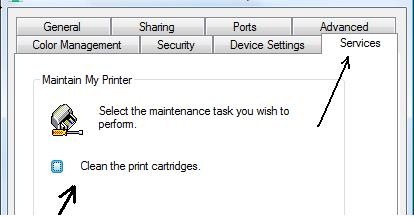
2: Get the most from your ink. Printers are designed to be used frequently, but in our homes we can go long periods between printing jobs-- this can lead to "clogged nozzles", or "dried out" cartridges. If it has been days or weeks since the last time you've printed, or your colors seem faded, you should run your printer's cleaning utility (sometimes called "maintenance"). Go to your Start button >Control Panel >Printers (in Vista, it's under "Hardware and Sound"). Then right-click on your printer's icon and select "Properties" from the context menu.
On the Printer Properties window, click on the "Services" tab.
opts1
Your actual options here may look slightly different (depending on your printer's make), but you are looking for the "clean cartridges" option.. in my case, it's the only choice. Select it, and click "OK".
Running this tool will clear up a surprising number of printer.. misprinting, and, perhaps counter-intuitively, get more mileage out of your ink cartridges.
[note: some printer manufacturers recommend running the cleaning tool if has been two days between print jobs. This sounds a little.. excessive to me; but, considering how small and delicate the nozzles can be... maybe they're onto something.]

*If you know your ink is on its last legs and its as good as gone, but you simply must get one last document printed, you can remove your ink cartridges and give them a good shake (and then replace them in the printer). This old trick may get your several more sheets before dead is truly dead.

3: give your printer the latest software. Your printer is a "device", and so to function smoothly with your PC, it needs software to communicate. This software is call "device drivers". Every so often, your printer's manufacturer will make improvements to this program and release it as an 'update'. This update may simply fix bugz not discovered in the original release, or make minor improvements, or it may add features to your printer's capabilities (or, all three). Installing the latest driver will keep your printer up to date and working its best with your operating system... keep in mind your operating system is changing (being updated) over time, and your device drivers need to keep up.
My two-part article on How To update your drivers is here, http://techpaul.wordpress.com/2007/08/22/if-it-aint-broke-dont-fix-it-part-1/, and as you can see from the title, I understand the idea that if it is working, why go get new software? Well, in computers, that idea doesn't exactly stand up.

Copyright 2007-8 © Tech Paul. All rights reserved.

Share this post :