Showing posts with label encryption. Show all posts

Thursday, November 20, 2008

The "Live" Line*

Microsoft's *New* Product Family

In my ongoing, relentless effort to be simply the Best Tech Writer on the Web, big changes are happening. HUGE changes. Gi-normous changes. (I mean.. really big.) These changes will alter the way I do everything. I am undergoing a metamorphosis of epic proportions. I am going to have to unlearn the ways I have been doing things for.. well, forever. Which isn’t easy. I’m too old to be learning new tricks without a grumble.

One change is that Tech–for Everyone is now being co-hosted on *another* blogging site. This is due to my research into the GigantiCorp known as Google, and my exploration of their ever-expanding array of services, some of which I have reported here.

(What this means for you, Dear Reader, is.. well.. not much– except, if you have grown tired of the “look” and layout of this site, you can read my articles at the other site, which uses a different “template”.)
When you acquire a ‘G-identity’, you gain access to much more than just a Gmail account (which, IMHO, is the best free Webmail service going right now), and one of those things is access to Blogger. Google is continuing to grow even as we speak… who knows what service they’ll be offering next.
I want to have a good relationship with Google, as it is my primary way of advertising my online Help & Support business.

[Addenda: for those of you whose favorite feature of this series is the daily download, you will definitely want to be aware of the "Google Pack" of free downloads -- Spyware Doctor being of special note -- and you can find out more here http://techpaul.wordpress.com/2007/11/21/googles-pack-is-a-winner/, in case you missed it]

What this means for me is, I now have to publish twice (six times a week!) each day– once here, and once there. Yuk. Fortunately for me, I have been doing intensive, in-depth explorations of the other GigantiCorp known as Microsoft.. specifically their competing array of services offered under the title “Live”.
(Have you noticed? Everything is “Live” now. It’s not “Hotmail”, it’s “Live Hotmail”; “Messenger” is now “Live Messenger”, and the security tools are “Live One Care”..)

I am now writing this article in a completely different way.. one that makes it easy to write-once, post-twice. I have downloaded and Installed a MS program called “Live Writer“, which is a tool for bloggers. The way I had been doing things (all this time) was through my web browser. I would navigate to here, login, access the writing tool, and when finished, hit the “Publish” button.

The other Big Change to my routine is caused by “Live Mail“, which is also freshly downloaded and installed. This is a program very much like Outlook Express and Vista’s Mail, only it allows you to access webmail accounts.. such as ‘Live Hotmail’. (Why don’t the other Microsoft mail clients??? Hmmm?)

It’s about time they did this. My usual routine was to open my web browser and open a tab for each webmail account. It is the way I’ve been doing it for.. well, forever. I have several webmail accounts (as you may have as well) and so this made for several open tabs and much clicking back-and-forth. Live Mail allows me to combine them (sorta) into one collection of folders.
A big plus-- it handles encryption certificates well (see, Simple E-mail Encryption).

If you use, or have ever used, an e-mail client (Thunderbird, Outlook, Outlook Express, etc.), then you will have a zero learning-curve with Live Mail, as it’s basically the same.. with one vital exception: it allows you to access all your mailboxes.

As you can imagine, my web browser had reached the point where I simply had too many tabs open (three Inboxes, WordPress, and now Blogger, plus a few of my favorite blogs..) and so I have “gone Live”. I am breaking my browser habit. I am trying New Things. No longer will I launch Avant and start Ctrl+T-ing. No! From here on out, I’ll launch a “Live” something-or-other.
Wish me luck. I think I feel the withdrawal symptoms beginning…

Today’s free link: Well, gee, Folks… I count five of them sprinkled throughout this one little article.. ain’t that enough for one day? But, if you’d like to see the *other* version of this website, click here.

Wednesday, August 20, 2008

Side Jacking-- Now Secure is not secure

If you use Gmail and haven't yet taken advantage of a feature Google recently provided to prevent hackers from hijacking your inbox, now would be an excellent time to do that. (click here, and read Tip #1.)

A security researcher at the Defcon hacker conference in Las Vegas demonstrated a tool he built that allows attackers to break into your Inbox even if you are accessing your Gmail over a persistent, encrypted session (i.e. using https://, which you might recognize as the "gold lock" icon).

Here is a video demonstration of how an attacker would use an automated tool to hijack your login. The music may strike you as offensive, and there's no narrative, so feel free to mute the sound.

Surf Jacking Gmail demonstration from Sandro Gauci on Vimeo.

While it may seem like Gmail is being singled out here, you should realize that other websites are vulnerable to side-jacking and cookie stealing too.. notably Facebook (I mention it because it has so many users), but Gmail is one of the few that allows you to thwart this attack method.

So how do you prevent this? Here are some simple but, inconvenient, solutions you can use to protect your data.

  • If possible, avoid using public or open wireless networks.
  • If you need to use a public wireless network, do not access Web sites that require personal information.
  • Always use the "logout" feature when finished with a Website that requires a login ID/password.
  • For Gmail, click the link in my first paragraph and set the "Always use" option.
  • When you need to provide sensitive data in forms, such as if you are doing online banking, open a new instance of your browser and complete your transaction; logout, and close that Browser. Do not open any other websites in that browser.

Folks, the Internet is broken.. and it is the hunting ground for criminals. Please.. let's be careful out there (and by careful, I mean "paranoid").

Today's free link(s):
* Because the Internet is not safe, Please look over, Top 10 Things You Should Do To Your Computer.
* . Yes, this is a repeat, but if you don't have it, click the link and read the page. Look for the link for the free version.

Copyright 2007-8 Tech Paul. All rights reserved.jaanix post to jaanix

Tuesday, August 19, 2008

News Items: Death of Web Radio, ISP Spying

A couple of recent tech headlines have caught my eye, and because of their dire implications, I thought I should pass them on to you.

Loyal readers may remember that a year ago now I wrote about the "day of protest" and the Internet Radio Equality Act which was vital to the future of free, public Internet radio and webcasters. (to read my article, click here.)

Today's title is premature, but not by much. The Copyright Royalty Board ruling that we were warned about is set to take effect. This is all about DRM and "protecting artists", and so an obscure Federal judge is going to change our current ability to listen to music. Forever.

"Pandora is one of the nation's most popular Web radio services, with about 1 million listeners daily. Its Music Genome Project allows customers to create stations tailored to their own tastes. It is one of the 10 most popular applications for Apple's iPhone and attracts 40,000 new customers a day. Yet the burgeoning company may be on the verge of collapse, according to its founder, and so may be others like it.

"We're approaching a pull-the-plug kind of decision," said Tim Westergren, who founded Pandora. "This is like a last stand for webcasting." "
To read the rest of this Washington Post article, click here.

Your ISP is spying on you:
The second headline probably really won't surprise anyone -- there's a lot of people watching our surfing habits, and developing profiles on us (for the purposes of bringing us "more relevant" ads). I almost ignored it, as the lead paragraph wasn't all that shocking..
"Cable One last fall conducted a six-month trial of a network-based technology that tracks consumers' Internet movements in an effort to amass refined data on Web-surfer habits that can be sold to advertisers at premium rates."

But I was intrigued.. what did they mean by "network technology"??? Then I did get shocked and alarmed.

Someone has decided that the firewall technology known as DPI ("deep packet inspection") may as well be used for full data mining of the traffic flowing through the service provider. Evil, evil someone.

You see, DPI is a method that can see through encryption. It is used for security purposes as it can read every word going over the wire and look for viruses and malware, and sensitive corporate data.

Basically, those Cable One customers had every word they typed read and recorded.. every website they visited.. and any attempts they made at maintaining their privacy (using proxies, anonymizers, or encryption) were foiled at the wire.
To read the whole article, click here.

It's for better advertising! Yay!
[Attention advertisers: Haven't you figured out that we ignore you? What do you think the mute button is for? The TiVo? AdBlocker software? Stop wasting your money! You've all been duped into believing a huge fallacy.]

Today's free link: is a repeat, it's the word "Pandora", above.

Copyright 2007-8 © Tech Paul. All rights reserved.
jaanix post to jaanix

Monday, August 4, 2008

Secure Gmail, repair Internet Explorer

A couple of quick tips to start the week, which were stimulated by reader questions.

Tip(s) of the day: How about that? Two for the price of one!
Tip 1) In response to public demand, Google has added a feature to its Gmail service which will force it to always use SSL encryption when you logon (https). This is particularly beneficial to those of you who use wireless, public computers, and/or public 'hotspots'. All you need to do is turn it on.
[note: a secured session is not the same thing as encrypting your individual messages. For my How To on that, click here.]

To turn on the "always use" feature, log on to your Gmail account, and in the upper-right area, find, and click on the "Settings" link.
Now, scroll down to the bottom, and in the "Browser connection" option, click on the "always use https" radio button, and then click on "Save Changes".
https 
That's it. You're done. Now your connection to the mail server will be encrypted and you'll be protected from packet sniffers.

Tip 2) Sometimes programs get "corrupted" and just refuse to work right, and usually the way to repair them is to uninstall them (Add/Remove Programs), and then re-Install a fresh copy.
One of my more popular articles has been how to repair the hyperlinks function in IE when clicking on a link doesn't open a new page (if that's your issue, click here), and this tip goes a little further than that. (To see all my articles on Internet Explorer, click on "IE 7" in my Categories widget.)

You can resolve many troublesome IE issues by "resetting" it (which also re-registers .dll's).
For IE 7:
Click on "Tools" and then "Internet Options".
On the Advanced tab, and then click the "Reset" button.
reset

For IE 6:
[note: I highly, sincerely, and ardently, urge you to stop using IE 6, and switch to 7, or Firefox 3, or Avant, or whatever. Please? It's only the most hacked piece of software ever!]
a: Click Start, click Run, type "%systemroot%\inf" (no quotes) and then press Enter.
b: Find the Ie.inf file that is located in Windows\Inf folder.
c: Right-click the Ie.inf file, and then click Install.
d: Restart the computer when the file copy process is complete

Today's free link: In one of the tips above, I mentioned Windows' Add/Remove Programs tool (found in your Control Panel) which is the standard method for uninstalling programs from your machine. Long-time Windows users can attest that this utility doesn't always work as it should, and completely remove all traces of the app you want gone. To really remove a program, you may want the power of a 3rd-party uninstall program, and the one that's most recommended in the Geek community is Revo Uninstaller (also available in a portable version).

Copyright 2007-8 © Tech Paul. All rights reserved.jaanix post to jaanix

Saturday, April 5, 2008

Top 10 Things You Should Do To Your Computer

There are several things a PC owner should do to have a healthy computer and be safe(r) from online cyber criminals when they browse the Internet. Not surprisingly, I have covered these topics/items over the course of writing this six-days-a-week series of articles.
I have noticed (from my stats) that not too many folks are looking through past (archived) articles, nor are they using the Search tool to find this previously posted advice and help. So I thought I would put the more important ones into a single list -- a "Top 10 List" -- and provide direct links (blue text) to the articles which cover the How To steps of making these things happen... and provide you with a simple way to find out what you need to do, compared to what you've done already. In case you missed one, or two.
(*some of these links take you to the "old" Tech--for Everyone.)

Tip of the day: Run down this list, and ask yourself, "have I done that?" to each one.

1) Install an antivirus, and keep it up-to-date (with the latest "definitions").
To read my articles on malware, click here. To see a list of links to free antivirus programs, click here. To read my article on how to configure your antivirus for maximum protection, click here.

2) Install two anti-spyware apps, with one having "active" shielding.
To read all my articles which discuss spyware, click here. To see a list of links to free anti-spyware programs, click here.

3) Install a 3rd Party firewall OR turn on the Widows Firewall.
* If you have a home router or Wireless AP, make sure its firewall is enabled (NAT).

4) Enable Automatic Updates from Microsoft (and either set it to automatically install [for the non-geeky] or to prompt for install [for the hands-on type]) and set your programs to "automatically check for updates".
And then actually click on the "Install" button when told there are updates available.. and please not tell them to "go away, you're busy."

5) Password protect your User Accounts.

6) Make a (monthly) system backup.. or at least a "files and settings" backup.. and store a copy -- on two different types of media -- someplace other than your hard drive.
To read all my articles on backups, click here.

7) Upgrade to IE 7 and/or an "alternative" Web browser (like Firefox, Opera, or Avant). Click here to read my articles on browsers and browsing.

8: Use strong (and complex) passwords. Everywhere. And change them every so often.

9) Rename the Administrator account.

10) Tell Windows to show file extensions.

* (Windows XP/older) Use the NTFS file system, and disable Simple File Sharing.

* (Laptops) Encrypt your hard drive.

There is more you can do to optimize your PC (of course) and the odds are good that I have told you the steps in a prior article, as I've written well over a 250 of them-- so far, and I invite you type the word "optimize" into my Search box and see what comes up. Also, my Tag Cloud can help you find topics that can help-- click on a word in the "cloud" and see the articles I have "tagged" as being relevant.
I hope this find-it-in-one-spot review has been helpful to you.

Today's free link: By clicking the links above, you will see all the previously posted downloads, of which there are many. And also, there are links to more free links in no's 1 and 2 above.

Copyright 2007-8 © Tech Paul. All rights reserved.

Thursday, March 20, 2008

How to encrypt your e-mail using a Certificate

Great! You have exchanged e-mails with Comodo, and completed the free certificate installation {and so has the person(s) with whom you want to exchange private messages} as I described in the proceeding article. You are now mere clicks away from simple-and-easy private exchanges.
All we have to do is associate the new certificate with the (appropriate) e-mail account. Once that is done, the encryption will be virtually transparent.. as in "automatic".

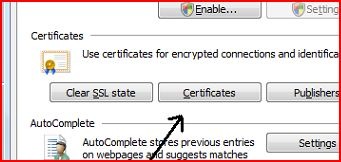
1) Verify install (Optional): Open an instance of Internet Explorer (if it isn't already) and click on the "Tools" menu item in the upper-right. Select "Internet Options" from the Context Menu. Now click on the "Content" tab. Look to the middle for the "Certificates" button, as shown below.


Now you should see your new Certificate listed...


As shown here. If you don't see this, it means that Windows did not complete the certificate installation. You will need to re-open the Comodo e-mail, and revisit the link, and repeat the Install process.But, that's thinking negative, so let's proceed as if everything (so far) looks right.

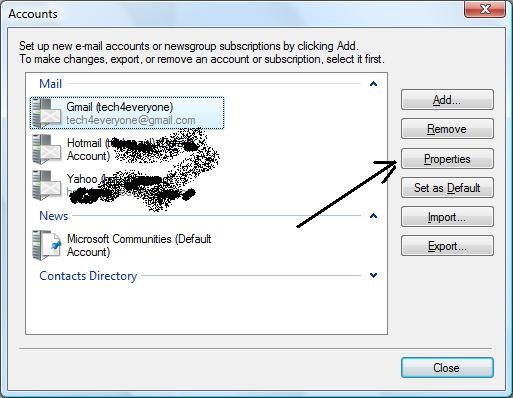
2) Associate Cert with e-mail: Close IE and open your e-mail client. In my screenshots I am using Live Mail, but the process steps apply to Vista Mail, Outlook, and OE as well. (Thunderbird and AppleMail are slightly different menu choices, but the principle is the same.) Click on "Tools", and then select "Accounts".This will list your configured e-mail accounts.


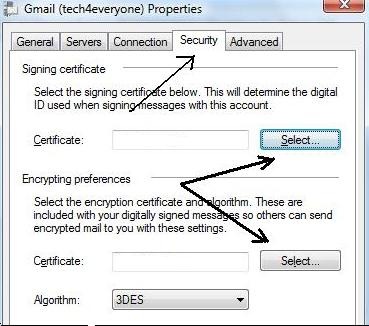
Select the account you requested the Certificate for by clicking (once) on it, {For demonstration purposes, I am associating the Cert with this site's e-mail account.} and then click on the "Properties" button. Select the "Security" tab.


Start by clicking the "Select" button for the "Signing certificate"..


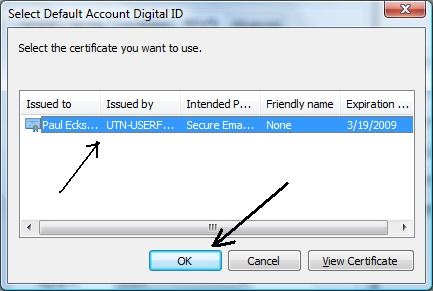
And click on the certificate shown (if you have more than one personal Certificate showing, use the dates issued to chose the correct one) and then "OK". Repeat this for the "Encrypting preferences" "Select" button.
Your e-mail account is now "Certified"! And you are ready for...

3) Send a "Signed" e-mail to your friend: Address a "New" e-mail to the person(s) you want to exchange encrypted messages with, and click the "Sign" button, then "Send". By "signing" your e-mail, you are sending them your "Digital ID" and a copy of your "public key".


4) Have the other party do #3 to you: Having the other party send a "signed" e-mail to you, gives you a copy of their DID and their public key. Now you both have the keys you need to exchange secure, private, encrypted e-mails to each other.

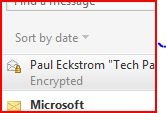
5) Click the "Encrypt" button before you click "Send": That's it.. it is now that simple. Your e-mail will appear in their Inbox like this..


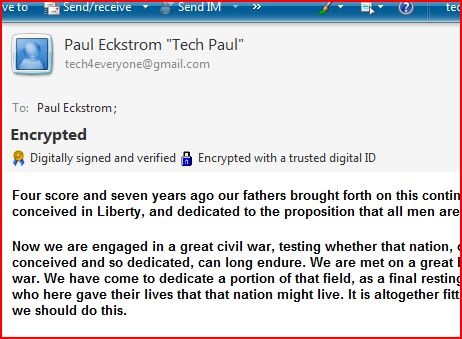
And when they open it (no special actions needed) they will see this...


and visa versa. From now on, it will be so smooth and easy, you might begin to wonder if your mail really is being scrambled/unscrambled. (It is.)

Copyright 2007-8 © Tech Paul. All rights reserved.

Share this post :

Wednesday, March 19, 2008

Continuing adventures in e-mail security

Who's reading your e-mail? Are you sure it is only the person you sent it to? Could it hurt you, or your business, (or, your marriage?) if someone else was reading it? Wouldn't it be great if you could ensure that only the intended recipient could read it?

Loyal Friends and True of this series will remember that I while back I wrote a series on using WinPT and GPG to encrypt your e-mail and keep your important conversations private. (If you would like to take a look, click here.) I feel compelled to confess to you, Dear Reader, that the topic was not too well received, and my stats took a bit of a downturn during its run. It is my belief that this was due to the fact that the method described is not one-click simple. It is, in fact, a bit complicated.

In the prior series, I explained (in my limited way) that the encrypting of files, and sending them to someone else, where they then need to decode them, is best done by the exchanging of "keys" in what is called "Public-key encryption" (for Wikipedia's explanation on that, click here). I will not be lecturing on that today.. though, I invite you to click the link if you're interested in (or curious about) cryptography.

It is not hard to understand how encrypting your writing -- so that it can travel across the Internet in an unreadable format -- is a "good thing".. a desirable thing.. and would have serious benefits. The encrypting of e-mails is often required by businesses, and they install cool (and expen$ive) machines on their networks that automatically encrypts all company e-mail. But what about us? Here at home? How do we do it? Can it happen automatically.. like it does at our job? Well, yes and no. The first step is to get yourself a "key". (GPG allows you to generate keys, btw.)

I mentioned in yesterday's article that I had started using a new (to me) e-mail client (Windows Live Mail) to access my webmail accounts. Live Mail, and all other e-mail clients (Outlook, OE, Thunderbird, etc.) natively support the use of "keys", and allow you so "sign" and/or encrypt your e-mail with a single click... assuming you have taken a couple of steps first.
You may have noted that I have been putting the word key inside quotes; that's because when I'm speaking at the level of how crypto works, I am actually speaking about algorithms and when I talk about using those keys, I am talking about "Certificates". To encrypt your e-mail you need to get a Certificate... which is really a key (pair). Confusing, I know.

Tip of the day: Get a Certificate for your e-mail account(s). There are several Certificate Authorities that offer free Certificates for the personal use in e-mail, but I have found that if you are using any Microsoft products.. or you suspect that your recipient(s) may be using Windows and/or Outlook (which is a fairly good bet), you want to get your e-mail certificate here:
Today's free link: Comodo Free Email Certificateimage

Fill in the form, and use the e-mail address that you want to protect with encryption (If you use more than one e-mail address regularly, repeat this process for each one: each account needs its own Cert), and click on the "Advanced Private Key Options" link, and place a check in the "User protected?" checkbox, and enter a "Revocation password (twice). Click "Agree & Cimageontinue".

A window will open telling you that a Certificate is being "requested on your behalf".. agree. Now you will see the screen (pictured). Click "OK".

If all goes as it should, the Comodo webpage will change to a "Congratulations!" page, and instructs you to check the Inbox of the account you created the Cert for. D

o so. There will be an e-mail from Comodo containing a link. You will need to click it to complete the process (Copy>Paste links into the address bar of your browser, remember?!).

image

Your e-mail will look like this. When you've copy>pasted the e-mail's link into your browser's address bar, and requested the Cert download, Windows will then automatically try to install it for you, but needs your permission..

image

Click "Yes" to give it.

image

This tells you you're done, and now you can digitally "sign" your e-mail.. which is the first real step to exchanging encrypted email.. which I will describe tomorrow.
Now, e-mail a link to this article to the person(s) you want private conversations with, and tell them to click the link and follow the Comodo wizard and get their key.. you're going to need it. Once you and they do this, encryption is a click away.

To read the final steps, click here.

Copyright 2007-8 © Tech Paul. All rights reserved.


Share this post :